Git for Network Engineers, Part 2: The Oh-Shit Toolkit
You’ve had git in your daily workflow for a few weeks. You’ve got the basics down, until you do one of these…
- You committed
vault_password.txtand pushed it before your second coffee. - You ran
git reset --hardto “clean up” and watched four hours of work disappear. - You’re three commits into a feature when somebody pings you about prod, and you can’t switch branches without committing junk.
- You typed
git push --forceto fix something and erased a teammate’s commits from main. - A merge conflict landed on you in the middle of a change window and your terminal is now a wall of
<<<<<<<markers.
This post is the toolkit for getting out of all of those.
Part 1 covered the everyday workflow. This part is the recovery toolkit for when that workflow goes sideways. None of it is exotic. All of it is stuff you’ll reach for two months in, then keep reaching for forever. I’m going to lead with the one command that underwrites everything else, then walk through the recovery patterns in roughly the order you’ll need them.
We’re picking up where Part 1 left off, still working in the same runbooks-demo repo.
The most important command in git: reflog
Git almost never throws anything away. Even when you “delete” a commit, “lose” a branch, or reset --hard your way into a hole, the original object is still in the repo’s storage for about 90 days. The trick is finding it.
git reflog (short for reference log) is the directory of every place HEAD has been on this machine. Every commit, every checkout, every reset, every merge. Run it any time you feel like you’ve broken something, and it’ll show you the SHAs you need to get back.
$ git reflog
3055aea HEAD@{0}: pull --ff-only origin main: Fast-forward
e07f73e HEAD@{1}: checkout: moving from add-firewall-playbook to main
5333e08 HEAD@{2}: commit: Add edge firewall baseline ACL playbook
e07f73e HEAD@{3}: checkout: moving from main to add-firewall-playbook
e07f73e HEAD@{4}: commit: Add .gitignore
1ccd1f1 HEAD@{5}: commit: Expand README with layout notes
215a67b HEAD@{6}: commit: Add config backup playbook and inventory template
71f47d1 HEAD@{7}: commit (initial): Initial commit: add README
That’s the entire history of my recent activity in this repo. Each line is where HEAD was, identified by a short SHA hash on the left. Whenever you think you’ve lost something, your first move is git reflog. Find the SHA where the thing you want still existed, then use one of the tools below to get back to it.
Internalize this. The first time it saves you a day of rework, the lesson sticks.
“I committed the wrong thing”
You committed, then immediately realized the message was wrong, or you forgot a file, or you staged the wrong diff. If you haven’t pushed yet, the fix is git commit --amend.
I made a deliberately ugly commit message to demonstrate:
$ git commit -m "Add TIMESTAMPED filename TODO comemnt to backup playbook"
[main ecd34a5] Add TIMESTAMPED filename TODO comemnt to backup playbook
 1 file changed, 1 insertion(+)
The word “comemnt” is clearly wrong, “TIMESTAMPED” in all caps is shouting at me, and the whole message reads worse than a typical Slack DM. Fix it:
$ git commit --amend -m "Add TODO comment for timestamped backup filenames"
[main 040f60d] Add TODO comment for timestamped backup filenames
 Date: Fri May 22 02:44:59 2026 +0000
 1 file changed, 1 insertion(+)
The commit hash changed from ecd34a5 to 040f60d. That’s the key thing to understand about --amend: it doesn’t modify the existing commit. It builds a new commit (with the new message and any newly-staged changes) and silently replaces the old one. The old commit still exists in the repo’s storage (and in your reflog) but the branch now points at the new one.
If you’d already pushed the commit before noticing, amend is a different conversation. Amending a published commit means rewriting history that others may have already pulled, which is the same problem we’ll talk about in the force-push section below. Inside the universe of “I haven’t pushed yet,” amend is your friend.
git commit --amend with no -m opens your editor on the existing commit message, letting you edit it. git commit --amend --no-edit keeps the message and adds your currently-staged changes to the previous commit. That second variant is the one I use most. Made a one-line change, forgot the test, stage the test, --amend --no-edit, done.
Unstaging and discarding changes
You staged a file you didn’t mean to:
$ git status
On branch main
Changes to be committed:
  (use "git restore --staged <file>..." to unstage)
	modified:   README.md
	new file:   scratch.txt
scratch.txt shouldn’t be in there. Pull it out of staging:
$ git restore --staged scratch.txt
$ git status
On branch main
Changes to be committed:
  (use "git restore --staged <file>..." to unstage)
	modified:   README.md

Untracked files:
  (use "git add <file>..." to include in what will be committed)
	scratch.txt
README.md is still staged, scratch.txt is back to untracked. git restore --staged <file> is the modern, less-confusing replacement for the old git reset HEAD <file> incantation. Same thing, friendlier name.
To go further and throw out the working-directory changes too:
git restore README.md        # Discard unstaged edits to README.md
git restore --staged --worktree README.md   # Unstage AND discard, in one shot
Be careful with the discard form. It’s destructive. Once you git restore over your unsaved edits, they’re gone (they were never tracked, so the reflog can’t bring them back).
Undoing a commit that’s already public: revert
You pushed a commit. Somebody pulled it. You realized it’s broken. Don’t try to rewrite history at this point. Add a new commit that undoes the old one.
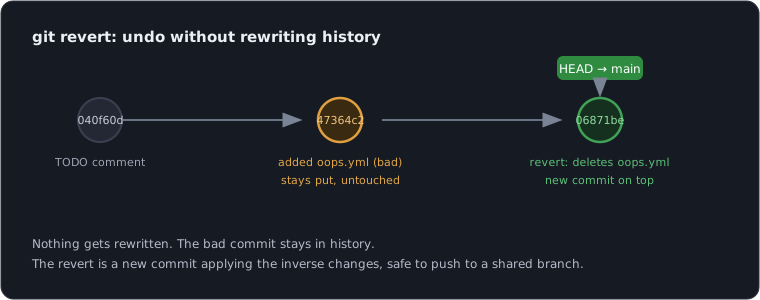
That’s what git revert does. It takes a target commit, computes the inverse of that commit’s changes, and stages a new commit applying them. Your history grows, but cleanly and without anybody having to do special operations on their checkouts.
I pushed a playbook called oops.yml that does something deeply unwise:
$ git push
   040f60d..47364c2  main -> main
Then I realized the regex was wrong and the playbook would wipe descriptions on every interface in scope. Revert it:
$ git revert HEAD --no-edit
[main 06871be] Revert "Add interface-description playbook"
 Date: Fri May 22 02:45:45 2026 +0000
 1 file changed, 9 deletions(-)
 delete mode 100644 playbooks/oops.yml
--no-edit skips opening the editor on the auto-generated message. The result in the log:
$ git log --oneline -3
06871be Revert "Add interface-description playbook"
47364c2 Add interface-description playbook
040f60d Add TODO comment for timestamped backup filenames
The bad commit is still there. The revert is a separate commit on top that undoes its effects.
Push it:
$ git push
   47364c2..06871be  main -> main
History intact, mistake undone, nobody had to do anything weird. This is the right tool for “I pushed something I shouldn’t have.” git reset, which we’ll get to next, is not that tool.
Undoing a commit that’s local only: reset
git reset rewrites history. It moves the branch pointer backwards. Anything past that point can become unreachable if you also throw away the changes it contained. This is dangerous on a branch other people use, and great on a branch only you use.
There are three forms. From safest to scariest:
git reset --soft <commit> Move the branch pointer back. Keep all the changes from the abandoned commits, staged. Your files don’t change, your index doesn’t change, only history moves. Great for “I committed too early, let me restructure these changes into different commits.”
git reset --mixed <commit> (also the default, if you don’t pass a flag): Same as --soft, plus unstage everything. Your files don’t change, but the index goes back to matching the commit you reset to. Great for “I committed too early, and I also want to re-pick what goes into the next commits.”
git reset --hard <commit> Move the branch pointer back AND throw out all working-directory changes AND clear the index. Your files revert to exactly the state of the target commit. Anything uncommitted dies. There is no warning. Great for “I’m absolutely sure I want to be at commit X, with a pristine working directory.”
I made a throwaway branch with a throwaway commit to demonstrate --hard:
$ git switch -c reset-demo
$ echo "another scratch line" >> README.md
$ git add README.md && git commit -m "Scratch commit two"
[reset-demo 62e5fe8] Scratch commit two
 1 file changed, 2 insertions(+)

$ git log --oneline -3
62e5fe8 Scratch commit two
06871be Revert "Add interface-description playbook"
47364c2 Add interface-description playbook

$ git reset --hard HEAD~1
HEAD is now at 06871be Revert "Add interface-description playbook"

$ git log --oneline -3
06871be Revert "Add interface-description playbook"
47364c2 Add interface-description playbook
040f60d Add TODO comment for timestamped backup filenames
HEAD is git’s pointer to where you are right now, almost always the tip of your current branch and the commit your next one will build on. HEAD~1 means one commit before HEAD, HEAD~2 two before it, and so on. So git reset --hard HEAD~1 rewinds the branch by exactly one commit. The Scratch commit two is gone from this branch’s history, and the file change it contained is no longer in my working directory. If I had unsaved edits, they would also be gone.
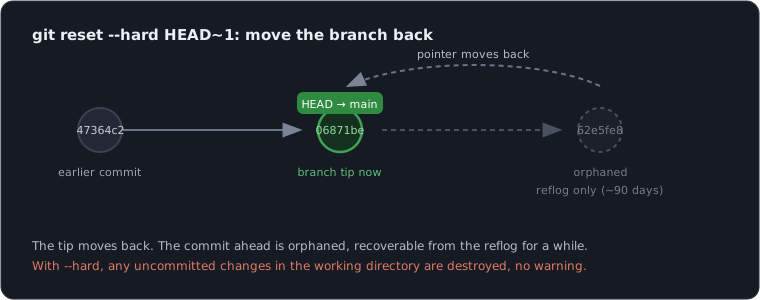
Reflog still knows about it, of course:
$ git reflog -5
06871be HEAD@{0}: reset: moving to HEAD~1
62e5fe8 HEAD@{1}: commit: Scratch commit two
06871be HEAD@{2}: reset: moving to HEAD~1
3752e3e HEAD@{3}: commit: Scratch commit we will undo
06871be HEAD@{4}: checkout: moving from main to reset-demo
62e5fe8 is still findable. If I changed my mind, I could git reset --hard 62e5fe8 to bring it back. But for everything to come, those commits exist only until the reflog expires (about 90 days, configurable). Don’t lean on this as a backup strategy. Lean on it as a recovery option when you mess up.
Rule of thumb:
- If the commit is local and unpushed:
resetis fine. - If anyone else might have pulled the commit:
revert, notreset.
Nuking a pushed commit (when nobody’s pulled yet)
There’s a middle case. You pushed something embarrassing thirty seconds ago. Nobody else has pulled. You’d much rather the commit just not exist than have a Revert "..." commit sitting next to it in history forever.
This is the one time you can move HEAD back on a pushed commit and get away with it.
I pushed a deliberately-bad debug playbook to demonstrate. (The Bypassed rule violations warnings are branch protection complaining; we’ll cover that in a future post. As an admin I’m being let through with a log entry.)
$ git push
remote: Bypassed rule violations for refs/heads/main:
remote:
remote: - Changes must be made through a pull request.
remote: - Required status check "yaml" is expected.
remote:
To https://github.com/tonhe/runbooks-demo.git
   bdce227..71554ea  main -> main

$ git log --oneline -3
71554ea TEMP debug playbook do not merge
bdce227 Add CODEOWNERS
e8d6453 Wire up pre-commit (yamllint, gitleaks, large-file guard)
That TEMP debug playbook do not merge is the one I want gone. Move local HEAD back:
$ git reset --hard HEAD~1
HEAD is now at bdce227 Add CODEOWNERS

$ git log --oneline -3
bdce227 Add CODEOWNERS
e8d6453 Wire up pre-commit (yamllint, gitleaks, large-file guard)
3706744 ci: install required ansible collections
Locally, the bad commit is gone. The remote still has it. Tell the remote about the rewind:
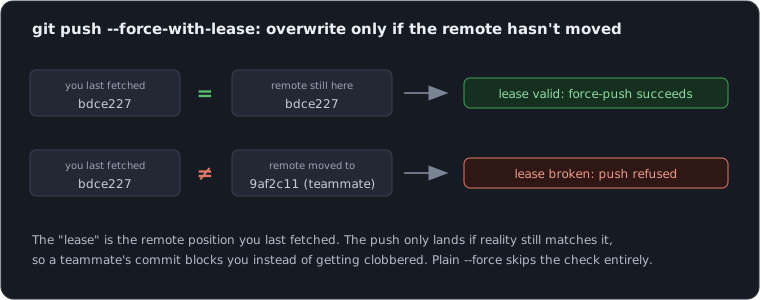
$ git push --force-with-leaseNote: not plain --force. The word doing the work is lease. When you fetch, git records where the remote branch was sitting. --force-with-lease overwrites the remote only if it’s still at that recorded spot, the way a lease is a claim that holds only as long as the agreed terms do. If a teammate pushed since your last fetch, the remote has moved, your lease is broken, and git refuses rather than clobbering their commit. Plain --force skips the check and stomps whatever’s there, which is how people erase a coworker’s work. Reach for --force-with-lease every time.
There’s a gotcha worth knowing about: if you’ve set up branch protection rules (we’ll get to those in a future post), force-pushing to a protected branch is also something the rules will block:
$ git push --force-with-lease
remote: error: GH006: Protected branch update failed for refs/heads/main.
remote: - Cannot force-push to this branch
To https://github.com/tonhe/runbooks-demo.git
 ! [remote rejected] main -> main (protected branch hook declined)
That rejection is the protection working as intended. The path forward in that case is either to temporarily relax the rule (an admin action), or to do the safe thing and use git revert instead. For an unprotected branch (or a feature branch you own), --force-with-lease goes through:
$ git push --force-with-lease
remote: Bypassed rule violations for refs/heads/main:
remote: - Changes must be made through a pull request.
remote:
To https://github.com/tonhe/runbooks-demo.git
 + 71554ea...bdce227 main -> main (forced update)
That + instead of the usual .. in the push output is git telling you it just rewrote published history. Treat that line as a signal that you owe somebody a heads-up.
When NOT to do this:
- Anyone else has pulled (their local copies now reference a commit that doesn’t exist on the remote, and the next time they
git pullthey get a confusing mess). - Anyone else has based work on the bad commit (you’ve now stranded their work on a dead branch).
- More than a few minutes have passed (the longer the window, the higher the chance somebody pulled).
If any of those apply, use git revert instead. The “extra” commit in history is much cheaper than the cleanup of explaining to a teammate why their git is broken now.
When you do use reset --hard + --force-with-lease, tell your team. Even on a tiny team. A two-line Slack message saying “hey, I rewrote main, you might want to git fetch && git reset --hard origin/main on your local” prevents the next problem.
Stashing: “I need to context-switch RIGHT NOW”
You’re mid-change. You have edits in your working directory, none of which are committable yet. The on-call channel lights up about a prod issue you need to look at on main. You can’t switch branches without losing or committing your work.
Stash it:
$ git status
On branch main
Changes not staged for commit:
	modified:   inventory.ini

Untracked files:
	playbooks/wip-vlan-cutover.yml

$ git stash push -u -m "vlan cutover WIP plus core-rtr-03 inventory"
Saved working directory and index state On main: vlan cutover WIP plus core-rtr-03 inventory

$ git status
On branch main
nothing to commit, working tree clean
Your working directory is clean. The changes are stored on a stack of stashes. The -u flag includes untracked files (the WIP playbook). Without -u, stash only grabs tracked files, which is a common gotcha.
Now you can switch branches, fix prod, commit, push, swap back, and:
$ git stash list
stash@{0}: On main: vlan cutover WIP plus core-rtr-03 inventory

$ git stash pop
On branch main
Changes not staged for commit:
	modified:   inventory.ini

Untracked files:
	playbooks/wip-vlan-cutover.yml

Dropped refs/stash@{0} (ed43b98614ef623ce0cd74191890f2d09a3db165)
pop applies the most recent stash and removes it from the stack. apply applies it but keeps it on the stack. If you stash repeatedly without clearing, git stash list shows the whole stack and you can pop a specific one with git stash pop stash@{N}.
Stash is one of those tools where the second time you use it, you wonder how you ever lived without it.
Merge conflicts, demystified
A merge conflict happens when two branches have changes that touch the same lines of the same file, and git can’t figure out automatically which version to keep.
I set one up. Branch rename-svc-account changes the ansible service account to ansible-svc. Branch update-svc-account changes the same line to automation. Trying to merge one into the other:
$ git merge update-svc-account
Auto-merging inventory.ini
CONFLICT (content): Merge conflict in inventory.ini
Automatic merge failed; fix conflicts and then commit the result.
The status now looks like this:
$ git status
On branch rename-svc-account
You have unmerged paths.
  (fix conflicts and run "git commit")
  (use "git merge --abort" to abort the merge)

Unmerged paths:
  (use "git add <file>..." to mark resolution)
	both modified:   inventory.ini

no changes added to commit (use "git add" and/or "git commit -a")
Open inventory.ini and you’ll find git has marked the disputed lines:
[routers]
core-rtr-01 ansible_host=10.10.0.1
core-rtr-02 ansible_host=10.10.0.2

[routers:vars]
ansible_network_os=cisco.ios.ios
<<<<<<< HEAD
ansible_user=ansible-svc
=======
ansible_user=automation
>>>>>>> update-svc-account
ansible_connection=network_cli
Three things to understand:
- The text between
<<<<<<< HEADand=======is what’s on the branch you’re currently on. (HEADis shorthand for “the tip of my current branch.”) - The text between
=======and>>>>>>> update-svc-accountis what’s on the branch you’re merging in. - Both blocks exist in the file as it sits on disk right now. You need to edit the file so that only the version you want remains, then remove the markers.
Edit the file to the version you want. In this case, automation:
[routers]
core-rtr-01 ansible_host=10.10.0.1
core-rtr-02 ansible_host=10.10.0.2

[routers:vars]
ansible_network_os=cisco.ios.ios
ansible_user=automation
ansible_connection=network_cli
No more markers. Tell git the file is resolved by staging it, then commit:
$ git add inventory.ini
$ git status
On branch rename-svc-account
All conflicts fixed but you are still merging.
  (use "git commit" to conclude merge)

Changes to be committed:
	modified:   inventory.ini

$ git commit --no-edit
[rename-svc-account aeda13a] Merge branch 'update-svc-account' into rename-svc-account
--no-edit accepts the auto-generated merge commit message. You can leave that off if you want to write your own.
A few things worth knowing:
git merge --abortat any point during a conflict bails out and puts you back where you were before you started the merge. Use it when you realize you don’t have time to resolve this right now.git mergetoolopens a configurable visual diff tool to walk through conflicts. Useful for big conflicts, often overkill for small ones.- The
<<<<<<<markers are just text. If you do something dumb likegit adda file that still contains markers, git won’t stop you. It assumes you know what you’re doing. Always re-read the file before you stage it.
git pull can produce a merge conflict too, because git pull is git fetch followed by git merge. Same resolution flow.
Recovering a deleted branch
You ran git branch -D some-branch to “clean up” and then realized you needed something on that branch. The branch reference is gone, but the commits are still in the repo’s storage, findable via the reflog.
I deleted rename-svc-account to set this up:
$ git branch -D rename-svc-account
Deleted branch rename-svc-account (was aeda13a).
The branch is gone, but aeda13a is the SHA of its tip. The reflog also has it:
$ git reflog -8
06871be HEAD@{0}: checkout: moving from rename-svc-account to main
aeda13a HEAD@{1}: commit (merge): Merge branch 'update-svc-account' into rename-svc-account
3fb671c HEAD@{2}: reset: moving to HEAD~1
2cf8cb4 HEAD@{3}: commit (merge): Merge branch 'update-svc-account' into rename-svc-account
3fb671c HEAD@{4}: checkout: moving from update-svc-account to rename-svc-account
d934f70 HEAD@{5}: commit: Update service account to automation
06871be HEAD@{6}: checkout: moving from main to update-svc-account
06871be HEAD@{7}: checkout: moving from rename-svc-account to main
HEAD@{1} is the merge commit that was the tip of the deleted branch. Restore it as a new branch:
$ git switch -c rename-svc-account-recovered aeda13a
Switched to a new branch 'rename-svc-account-recovered'

$ git log --oneline -3
aeda13a Merge branch 'update-svc-account' into rename-svc-account
d934f70 Update service account to automation
3fb671c Rename service account to ansible-svc
The branch is back. All the commits, in order, exactly as they were. The recovered branch doesn’t have to use the original name. I called it -recovered to be explicit, but you can call it whatever you want.
The reflog is local, by the way. If the branch only existed on someone else’s machine and they deleted it, you can’t recover from their reflog. You can recover from git reflog on whichever machine did the deletion.
“I committed credentials”
This is the bad one. You committed vault_password.txt or aws_credentials.yml or whatever, and you may or may not have pushed.
There are two cases. Handle the right one.
Case A: You haven’t pushed yet
Easiest case. The commit is local only.
If it’s the most recent commit and you only need to fix the file or remove it:
# Remove the file from the working dir
rm group_vars/cloud.yml

# Stage the deletion and amend the previous commit
git add -A
git commit --amend --no-edit
If you want to throw out the commit entirely:
git reset --hard HEAD~1Both of those only reach the most recent commit. If the credential is buried deeper, say you committed it ten commits back and only just noticed, neither amend nor reset --hard HEAD~1 reaches it, and reset --hard HEAD~11 would throw out ten good commits along with it. That’s a job for the same git filter-repo surgery in Case B below, which scrubs a file out of every commit no matter how deep. The upside of not having pushed: nothing left your laptop, so you skip the rotate-and-coordinate scramble and just rewrite your local history.
Either way, the credential never left your laptop. Move on.
Case B: You already pushed
The pushed case is the one that hurts.
The very first thing you do is rotate the credential. The moment that file hit a public history (and anybody else with a clone is a public history), assume it’s compromised. Rotate the key, change the password, regenerate the token, whatever applies. Do this before you try to scrub history. Scrubbing comes second.
Once the credential is dead, then it’s worth removing it from the git history. Not because it’ll save you (you already rotated), but because you don’t want it sitting in your repo’s history as a snare for the next person to clone it.
I’ll simulate the situation. I added an AWS-style credential file and pushed it:
$ git push
   06871be..1317d66  main -> main
Step back. Even a credential scanner you can run locally will tell you what’s there:
$ gitleaks git --no-banner --redact=50 -v
Finding:     aws_access_key_id: AKIA34QNS9...
Secret:      AKIA34QNS9...
RuleID:      aws-access-token
Entropy:     3.784184
File:        group_vars/cloud.yml
Line:        3
Commit:      1317d665b3310eb059ea99f51276f581fa437002

leaks found: 1
A future post in this series wires gitleaks into pre-commit hooks so this never gets committed in the first place. For right now, we have to clean it up after the fact.
The tool for rewriting history at scale is git filter-repo. It’s a Python program, not part of core git, but it’s the project-recommended way to do this kind of surgery (the older git filter-branch has been deprecated for years).
pip install git-filter-repoThen, from inside the repo, tell it to remove the file from every commit:
$ git filter-repo --invert-paths --path group_vars/cloud.yml --force
NOTICE: Removing 'origin' remote; see 'Why is my origin removed?'
        in the manual if you want to push back there.
        (was https://github.com/tonhe/runbooks-demo.git)
Parsed 9 commits
New history written in 0.03 seconds; now repacking/cleaning...
Repacking your repo and cleaning out old unneeded objects
Completely finished after 0.10 seconds.
--path group_vars/cloud.yml is the file we want gone. --invert-paths means “operate on everything except the matching paths” without it, filter-repo would keep only the listed files, which is the opposite of what we want here. --force is required because filter-repo refuses to run if it thinks the operation might be a mistake.
A few things just happened:
- Every commit that ever touched
group_vars/cloud.ymlgot rewritten. The file is gone, and the SHA of every commit downstream of the first one to include the file has changed. - The
originremote was deliberately removed. This is filter-repo’s safety: it doesn’t want you to accidentally push the rewritten history to the same remote as a casualgit push. You have to put origin back yourself.
Verify the file is gone from all of history:
$ git log --all --full-history -- group_vars/cloud.yml
(file gone from history)
Empty output means no commit, anywhere, in any branch, ever touched that path.
Re-add origin, fetch the current remote state, and force-push the rewritten history:
$ git remote add origin https://github.com/tonhe/runbooks-demo.git

$ git push --force-with-lease origin main
To https://github.com/tonhe/runbooks-demo.git
 ! [rejected]        main -> main (stale info)
error: failed to push some refs to 'https://github.com/tonhe/runbooks-demo.git'
That rejection is expected. --force-with-lease refuses to push because it has no record of what the remote currently looks like (filter-repo wiped that). Fetch first to establish what we’re overwriting:
$ git fetch origin
From https://github.com/tonhe/runbooks-demo
 * [new branch]      main       -> origin/main

$ git push --force-with-lease origin main
To https://github.com/tonhe/runbooks-demo.git
 + 1317d66...00d97bb main -> main (forced update)
The remote is now scrubbed. Anybody who already cloned the repo before the scrub still has the credential in their local history. Tell them to re-clone (or run the same filter-repo on their copy and push it nowhere).
This is a lot of effort. It is much less effort than not committing the credential in the first place, which is why a future post spends real time on the pre-commit-hook setup that catches this before it ever leaves your laptop.
Rebase, briefly
Rebase is the other way (besides merge) to integrate changes between branches. Instead of producing a merge commit that joins two histories, rebase takes commits from one branch and replays them on top of another, producing a linear history.
The day-to-day place you’ll see this is git pull --rebase:
git pull --rebaseThe plain git pull does fetch-then-merge. If you and a teammate have both committed to main, plain pull creates a merge commit. --rebase instead takes your local commits, sets them aside, fast-forwards your local main to the remote tip, then replays your local commits on top. The result is a straight line of history, no merge commits clogging things up.
For pulling into your own branch from main, it’s the cleaner default. If you want every git pull to behave this way without having to type --rebase each time, set it globally:
git config --global pull.rebase trueFrom that point on, every git pull in every repo is rebase-style. (You can override per-repo with git config pull.rebase false if you ever need to.)
You can also rebase one branch onto another deliberately:
git switch feature/something
git rebase main      # Replay this branch's commits on top of current main
This is great for keeping a feature branch up to date with main while you work.
The cardinal rule of rebase: never rebase a branch that other people are also working on. Rebasing rewrites history, which gives every commit a new SHA. Anyone who has pulled the old version is now stranded with commits that don’t exist on the remote anymore, and the recovery is unpleasant for everyone. Rebase your local branches. Rebase your unpushed work. Don’t rebase shared history.
Force push, the safer kind
Sometimes you legitimately need to overwrite a published branch (after a rebase, after filter-repo, after commit --amend on something you’d already pushed). The wrong way is git push --force. The right way is git push --force-with-lease.
The difference:
--forcesays “I don’t care what’s on the remote, replace it with what’s local.”--force-with-leasesays “Replace the remote with what’s local, but only if the remote is still pointing at the commit I last saw. If somebody else pushed since I last fetched, abort.”
That second check is the difference between rewriting your own work and accidentally erasing a teammate’s. If you and I are both working on the same branch and you push something while I’m rebasing locally, --force-with-lease will refuse my push. Plain --force will silently delete what you pushed.
Always use --force-with-lease. The extra typing is worth the safety.
My oh-shit cheatsheet for Git
Quick reference for next time you’re scrambling:
| Situation | Tool |
|---|---|
| I committed and want to fix the message (not pushed) | git commit --amend |
| I committed and want to add a forgotten file (not pushed) | git add <file> && git commit --amend --no-edit |
| I staged the wrong file | git restore --staged <file> |
| I want to discard unstaged edits | git restore <file> |
| I pushed a bad commit (others may have pulled) | git revert <sha> |
| I committed too early on a local branch | git reset --soft HEAD~1 |
| I want my branch to look exactly like a specific commit (DANGER) | git reset --hard <sha> |
| I need to switch branches with uncommitted work | git stash push -u -m "what I was doing" |
| I want my stashed work back | git stash pop |
| There’s a merge conflict | Edit the file, git add, git commit |
| I want out of a merge I started | git merge --abort |
| I deleted a branch and need it back | git reflog then git switch -c <name> <sha> |
| I committed a credential (not pushed, recent commit) | git reset --hard HEAD~1 |
| I committed a credential buried deeper (not pushed) | git filter-repo --invert-paths --path <file> |
| I pushed a credential | Rotate first, then git filter-repo --invert-paths --path <file> --force |
| I need to overwrite a published branch | git push --force-with-lease |
| I’m pulling from main into my feature branch | git pull --rebase |
Wrapping up
Almost nothing you do in git is truly unrecoverable. Commit too early, blow away a branch, stage the wrong file, even push something you shouldn’t have, there’s a way back from each of these, and git reflog is usually where the way back starts. Once that sinks in, you stop tiptoeing around git and start using it like you mean it. Part 3 picks up exactly there. Reading the Crime Scene turns the history you just learned to protect into something you can interrogate.
One ask: this series is a work in progress, and your feedback steers it. Has it been useful? Is there a git disaster you keep landing in that I haven’t covered? Drop a comment, I read every one, and the gaps you flag are what I write next.
Get the rest of Git for Network Engineers in your inbox.